Quick Start
Quickly integrate and perform a test payment with Judopay.
The following example takes you through the steps to quickly integrate and perform a test card payment using Judopay’s Web SDK.
Start Integrating with Judopay
To start integrating with Judopay:
Step One: Sign up for your Judopay Sandbox Account
You need your sandbox account so you can process test transactions while developing your app.
An app is a Judopay term and relates to your API credentials.
Once signed up, you will receive your:
- TokenSecretAuth
- The token and secret pair
- Specify your token in Username and secret in Password
- JudoId
Ensure Judopay has enabled 3D Secure in your sandbox account. If this is not enabled the test transaction may appear successful without following the correct payment flow. Contact Customer Support to set this up.
Step Two: Get Access to your Judopay Dashboard
Get access to your dashboard in the Judopay Portal where you can create your app. For more details, see Creating your App.
Perform a Test Payment
The following guide is a full working example for use with Judopay's Web SDK.
When authorising /payments or /preauths it is recommended to use paymentSession.
Step One: Create a paymentSession
Make sure you are using Judopay's API version 6.0.0.0 or higher.
Important to Consider
- The paymentSession can be used for up to three transaction attempts for the same transaction.
- If the block duplicate transactions permission has been applied on your API tokens, the paymentSession can only be used for one transaction attempt.
- If you want to have this permission removed, contact Customer Support.
- A payment session can be used again to re-submit a failed transaction attempt.
- Once a transaction attempt is successful, the paymentSession can no longer be used even if there are any remaining attempts available.
- The paymentSession will expire in 30 minutes, unless an ExpiryDate is set in the /paymentsession request body.
- The expiry date must be within one year: "ExpiryDate": "2028-10-06T17:43:21+01:00"
As soon as the payment session is used for the initial transaction attempt, this will initiate the 30 minute expiry time.
Make a HTTP POST Request: /paymentsession
{
  "judoId": "100100100",
  "yourConsumerReference": "2b45fd3f-cee5-4e7e-874f-28051db65408",
  "yourPaymentReference": "6482c678-cad3-4efd-b081-aeae7a89a134",
  "currency": "GBP",
  "amount": 10.99,
  "expiryDate": "2028-02-05T16:28:32.8596+00:00" //if not set, session will expire in 30 minutes
}
For the full schema details and descriptions, see Transaction API: /paymentsession
Your backend server should store the paymentSession response reference returned by Judopay's API. Use this reference from the response to populate paymentSession when calling /payments and /preauthsfrom your front-end client. See Step Three: Making a Transaction.
The following parameters need to remain consistent between the /paymentsessionrequests and the /payments and /preauths requests, otherwise the transaction will fail:
- YourPaymentReference
- YourConsumerReference
- JudoID
- Currency
- Amount
This is used to cross reference the validity of the transaction.
Step Two: Add the Payment Form to your Website
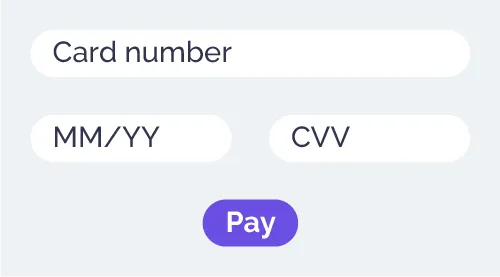
To automatically receive non-breaking changes, you can pin to the minor version (0.0) rather than the current patch version (0.1.0).
Create and customise the Judopay Web SDK iFrame:
Add the code snippet in your web page <HEAD>: scriptsrc="https://web.judopay.com/js/0.1.0/judopay.min.js"> This example will use jQuery for a promise, so include the following in your web page <HEAD>: <scriptsrc="https://ajax.googleapis.com/ajax/libs/jquery/3.4.1/jquery.min.js></script>
In your <BODY> add a <div> tag where you want the iframe to appear: <div id="payment-iframe" width="100%"></div> This example uses the id: payment-frame. You can use whatever id you wish.
In your <BODY> add a <div> tag where you want the errors in form entry to appear. For the purpose of this exercise, the class is named judopay-errors, and sets a style to be red. You can add any custom style you wish in your .CSS file: <div class="judopay-errors" style="color:red">Error Location</div>
For more information on all errors that can be returned, see Payment Form Error Messages.
In your <BODY> add a button call: submit-payment-button for the iframe submission to Judopay. Make sure you have set: id="submit-payment-button" This is required to perform form validation where the Pay button will be greyed out until all the information has been entered. <button id="submit-payment-button" Pay Now </button>
You can apply any css styling you wish to this button.
In your <BODY> define the iFrameConfiguration object. This is used to customise the look and behaviour of the iFrame. For more information on customising the iFrame, see Customising your Web SDK Integration.
Create an instance of the Judopay Web SDK: var judo = new JudoPay("yourAPIToken", true); //initialize library
- Alter yourAPIToken to match your Sandbox API Token
- The second parameter is called useSandbox
- Set to true to use the Sandbox environment.
- Set to false to use the Production environment.
Create the iFrame in the <div> tag: var payment = judo.createCardDetails('payment-iFrame', iFrameConfiguration)
- 'payment-iFrame' The <div> id where the iFrame will be rendered, in step (2) above.
- iFrameConfiguration The object defined to customise the look and behaviour of the iFrame, in step (5) above.
An example of an iFrameConfiguration object:
//Script to create a minimum iframe:
<script>
const iFrameConfiguration = {
    isGeoLocationGatheringAllowed: true,
    iFrame: {
    language: "en",
    errorFieldId: 'judopay-errors',
    showCardTypeIcons: true,
    layout: "vertical",
    cardTypeIconRight: "10px",
    cardTypeIconTop: "-2px",
    backgroundColor: "#FFFFFF",
    enabledPaymentMethods: ['CARD'],
    defaultCountryCode: 'UK',
    isCountryAndPostcodeVisible: false,
    isCardHolderNameVisible: true,
    errorsDisplay: "HIDE_UNDER_FIELDS",
    disableUnderline: false,
    shouldAutofocus: true,
            }
    }
</script>
The iframe is created in your <SCRIPT> location.
See below for more details on the parameters that create the iFrameConfiguration object:
Parameter | Description |
|---|---|
isGeoLocationGatheringAllowed Boolean | isGeoLocationGatheringAllowed = false The browser will not ask for the location. |
isChallengeModalCancelButtonVisible Boolean | isChallengeModalCancelButtonVisible = true If set to false, the cancel (X) button on the 3D Secure 2 challenge modal will not be shown. |
iFrame Parameters: | |
language String | Sets the language of the iFrame. Values:
|
errorFieldId String | Set as the class name of the <div> where the errors appear. For example: <div class="judopay-errors">Error Location</div> |
showCardTypeIcons Boolean | showCardTypeIcons = true The card icons will display when the card entry is recognised. |
cardTypeIconRight String | Changes the position of the card icon. |
cardTypeIconTop String | Changes the position of the card icon. |
backgroundColor String | Sets the background colour of the iFrame. For example:
|
layout String | Sets the layout of the iFrame payment form. Values:
For the form layout illustrations, see Form Layout. |
defaultCountryCode String | Sets the country displayed in the country field. For example:
|
isCountryAndPostcodeVisible Boolean | isCountryAndPostcodeVisible = true The country and postCode fields will be displayed. |
isCardHolderNameVisible Boolean | isCardHolderNameVisible = true The cardHolderName field will be displayed. |
enabledPaymentMethods String [ ] | Array of accepted payment methods. Values:
|
errorsDisplay String | Formats how errors are displayed to the consumer. Values:
|
shouldAutofocus Boolean | shouldAutofocus = true Sets the focus to the cardNumber field when the iFrame appears |
idealPollingTimeout Number | Specifies the amount of time the system waits for the IDEAL alternative payment method to respond. For example: 6000 |
disableUnderline Boolean | disableUnderline = false When the consumer enters information into the iFrame, the fields will be underlined and highlighted. |
allowedCardSchemes String [ ] | Array of accepted card schemes. If this field is set, an error will appear if an unsupported card scheme is entered. Values:
|
styles Object | A JSON object. Define further css style customisation for the payment fields. For more information, see Styles Properties. |
fonts Object [ ] | An array of JSON objects, each representing a font. For more information, see Form Fonts. |
Step Three: Making a Transaction
To make a transaction:
- Define the paymentConfiguration object for the payment or preauth:
Ensure the details used when creating the paymentSession match the values set in the following configuration:
const paymentConfiguration = {
    judoId: "yourJudoId",
    amount: 1.01,
    currency: "GBP",
    phoneCountryCode: "44",
    challengeRequestIndicator: "challengeAsMandate",
    initialRecurringPayment: false,
    yourConsumerReference: "yourConsumerReference",
    yourPaymentReference: "yourPaymentReference",
    billingAddress: {
        address1: "My house",
        address2: "My street",
        town: "My town",
        postCode: "TR14 8PA",
        country: "826"
    },
    mobileNumber: "07999999999",
    emailAddress: "[email protected]",
    primaryAccountDetails: {
        name: "Doe",
        accountNumber: "9999999",
        dateOfBirth: "1989-09-19",
        postCode: "AB1 2CD"
    }
}
Web SDK Payment Parameter Descriptions
See below for more details on the parameters that create the paymentConfiguration object:
*Mastercard Recommends: These fields are recommended rather than mandatory. Transactions will continue to be processed if not supplied. See, Mastercard Recommended 3D Secure 2 Fieldsdd.
Parameter | Description |
|---|---|
judoId String Required | Unique ID supplied by Judopay. Specific to a merchant and/or location. Format:
|
amount Decimal Required | The amount to process. Format:
For currencies using a different structure please contact Judopay for support. |
currency String Required | The currency of the transaction. Any ISO 4217 alphabetic currency code:
|
yourConsumerReference String Required | Unique reference to anonymously identify your customer. Advisable to use GUIDs. Must be below 40 characters. |
yourPaymentReference String Required | Your unique reference for this payment. Format:
This value should be unique in order to protect your customers against duplicate transactions. With a server side integration, if a payment reference is not supplied, the transaction will not be processed. |
phoneCountryCode String Recommended * | The country code of the consumer's phone. Format:
Must be set if mobileNumber is set. If not set, default = 44 |
mobileNumber String Recommended * | Consumer’s valid mobile number. Mastercard recommends providing at least one contact method for Mastercard 3D Secure authenticated transactions. Format:
Must be set if phoneCountryCode is set. |
cardHolderName String Recommended * | The card name of the consumer. If the cardHolderName field is displayed to the user in the payment form (isCardHolderNameVisible: true is set in the iFrame config), the value entered in the payment form will overwrite this value. |
challengeRequestIndicator String Optional | Indicates the type of challenge request you wish to apply. Set this to one of the following strings:
This should not be included in the same configuration object as scaExemption. |
scaExemption String Optional | To apply for an exemption from SCA, for a customer initiated transaction. Set this to one of the following strings:
This should not be included in the same configuration object as challengeRequestIndicator. |
initialRecurringPayment Boolean Optional | Indicates if this initial payment is part of a recurring payment. |
billingAddress Object Optional | Card holder's billing address. Properties:
If the billingAddress is provided, the postcode is required. |
emailAddress String Recommended * | Consumer’s valid email address. Mastercard recommends providing at least one contact method for Mastercard 3D Secure authenticated transactions. |
primaryAccountDetails Object Optional | This is Mandatory for merchants who have an MCC code of 6012, 6051 and 7299. Properties:
|
2. In a function, add the invokePaymentcall. This will invoke a payment using the paymentSession and paymentConfiguration
function handlePaymentButtonClick() {
    judo.invokePayment(paymentSession, paymentConfiguration)
    .then(handleSuccess)
    .catch(handleError)
}
To invoke a preAuth, change the above code to .invokePreauth
3. To call the function (in step 2 above) to invoke the payment or preauth, add the onclickattribute to the payment button <div>: <button id="submit-payment-button" onclick="handlePaymentButtonClick()"> Pay Now </button>
Step Four: Handle the Response
All the Judopay Web SDK transaction methods return a promise. Once the authorisation is complete, the promise will be either fulfilled or rejected.
Fulfilled
- You will receive a JSON object response (a Judopay receipt object).
- Depending on the result the consumer should be redirected to the appropriate outcome page.
- For example, if the result = SUCCESS redirect the consumer to the Success Page.
- This page should display the necessary transaction information (found in the Judopay receipt object).
Rejected
- You will receive an error object
- The consumer should be redirected to an Error Page.
const onFulfillment = (receiptObject) => {
  const { result } = receiptObject
  //redirect to appropriate page depending on the result (success/failure/declined page)
}

const onRejection = (error) => {
  //redirect to error page and handle error
}
For more information on the response codes, see Codes.
Putting it all together
Putting it all together to display the payment form and make a transaction:
<html>
<head>
    <!-- Include JudoPay WebSDK -->
    <script src="https://web.judopay.com/js/0.0/judopay.min.js"></script>
    <script src="https://ajax.googleapis.com/ajax/libs/jquery/3.5.1/jquery.min.js"></script>
</head>
<body>

    <!-- Where the Judopay iFrame will be displayed -->
    <div id="payment-iframe" width="100%"></div>

    <!-- Payment button for submitting iFrame input -->
    <button id="submit-payment-button" onclick="handlePaymentButtonClick()"> Pay Now </button>

    <!-- Where the payment form errors will be shown -->
    <div class="judopay-errors" style="color:red"></div>

    <script>

        // Define config object for customizing style/behaviour of iFrame
        const iFrameConfiguration = {
            isGeoLocationGatheringAllowed: true,
            iframe: {
                language: "en",
                errorFieldId: 'judopay-errors',
                showCardTypeIcons: true,
                layout: "vertical",
                cardTypeIconRight: "10px",
                cardTypeIconTop: "-2px",
                backgroundColor: "#FFFFFF",
                enabledPaymentMethods: ['CARD'],
                defaultCountryCode: 'UK',
                isCountryAndPostcodeVisible: false,
                isCardHolderNameVisible: true,
                errorsDisplay: "HIDE_UNDER_FIELDS",
                disableUnderline: false,
                shouldAutofocus: true,
            }
        }

        // Initializing/creating an instance of the Judopay webSDK
        var judo = new JudoPay("yourAPIToken", true);

        // Displaying the card entry iFrame
        var payment = judo.createCardDetails("payment-iframe", iFrameConfiguration);

        //Define config object for payment/preauth
        const paymentConfiguration = {
            judoId: "yourJudoId",
            amount: 1.01,
            currency: "GBP",
            phoneCountryCode: "44",
            challengeRequestIndicator: "challengeAsMandate",
            initialRecurringPayment: false,
            yourConsumerReference: "yourConsumerReference",
            yourPaymentReference: "yourPaymentReference",
            billingAddress: {
                address1: "My house",
                address2: "My street",
                town: "My town",
                postCode: "TR14 8PA",
                country: "826"
            },
            mobileNumber: "07999999999",
            emailAddress: "[email protected]"
        }

        function handleSuccess(response) {
            //Redirect to success page and handle response
        }
        function handleError(error) {
            //Redirect to error page and handle error
        }

        //Called when payment button pressed to invoke payment
        function handlePaymentButtonClick() {
            judo.invokePayment("yourPaymentSession", paymentConfiguration)
                .then(handleSuccess)
                .catch(handleError)
        }
    </script>

</body>
Testing and Customising your Integration
For more information, see Testing Web SDK - Card Payments.
For more information on customising your integration, see Customising your Web SDK Integration.